Organize QR codes with folders
Group QR codes by campaign, location, or team. Nested folders, bulk moves, and instant filtering so you can find the right code fast.
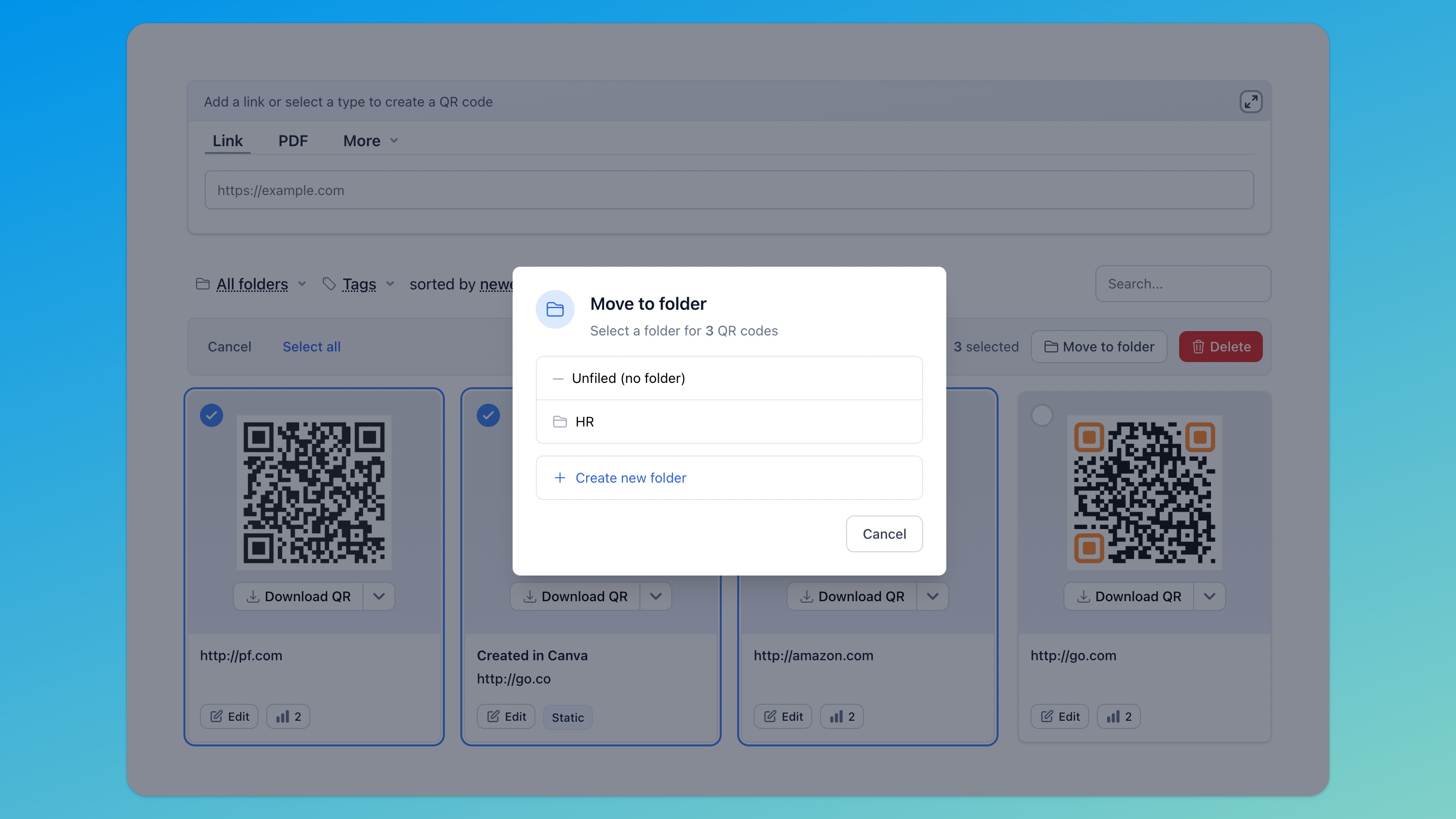
Scrolling through a flat list of QR codes gets old fast
You start with a few QR codes and everything's manageable. Then you've got 50. Then 200. Tags help, but when you're running campaigns across multiple locations or teams, you need proper structure.
Hovercode's folder system gives you exactly that. Organize codes the way your business works, not the way the tool forces you to.
How it works
-
1
Create your folders
- Create folders from your dashboard or workspace settings. Name them by campaign, location, product line, or team - whatever structure fits your business.
-
2
Move codes into folders
- Select one or many QR codes and move them in one action. You can also create new codes directly inside a folder so they're organized from the start.
-
3
Filter and find
- Click a folder in the sidebar to instantly filter your dashboard. Combine with search and tags to find exactly what you need, even across hundreds of codes.
Built for teams that manage QR codes at scale
- Nested folders - create subfolders within folders for as many levels of organization as you need
- Bulk move - select multiple codes and move them to a different folder in one action
- Dashboard filtering - click a folder to instantly see only the codes that matter
- Safe deletion - when you delete a folder, choose whether to keep the codes (move to unfiled) or remove them too
- Works with tags - combine folders with the tagging system for even more flexibility in organizing and finding codes
Frequently asked questions
Are folders available on the free plan?
Yes. Folders are available to all users. You can create folders, move codes between them, and filter your dashboard by folder on any plan.
How many levels of nesting are supported?
You can nest folders as deep as you need. Create subfolders within subfolders to match whatever organizational structure works for your team.
What happens to QR codes when I delete a folder?
You choose. When you delete a folder, Hovercode asks whether you want to move the codes to "unfiled" (keeping them active) or delete them too. Subfolders are moved to the deleted folder's parent.
Can I move multiple codes at once?
Yes. Select multiple QR codes on your dashboard and use the bulk move action to move them all to a folder in one step.
How do folders work with tags?
Folders and tags are complementary. Use folders for broad structure (by campaign or location) and tags for cross-cutting labels (by status or audience). You can filter by folder and tag at the same time.
More than QR code organization
Hovercode gives you the tools to create, customize, track, and manage QR codes at any scale. Folders are just one part of the platform.

Get your QR codes organized
Create folders, move your codes, and stop wasting time scrolling. No credit card required.